Custom CSS in PXStudio
PXStudio's free version of the WYSIWYG editor has limited design capabilities. To enable more adaptable design options, a custom CSS has been created.
CSS controls the look of HTML elements such as tables, paragraphs, and images. It also manages font type, size, and color.
USING THE NEW STYLE
- Copy all the text from Appendix 1.
- Open a PXStudio Widget in HTML editor mode.
- Paste the text at the very top of the editor, on line 1.
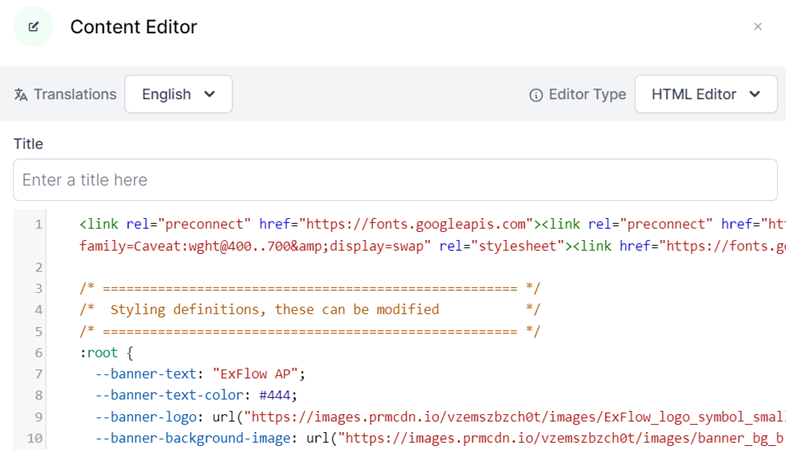
After saving, the appearance will remain unchanged because no elements in the Widget are yet referring to the new CSS.
PRE-MADE ELEMENTS
To simplify the process, we have created a couple of pre-made elements. More can be added upon request.
Banner
A more colorful banner with a background image and product logo.

Image Block
An easier way to display text side by side with an image.

ADDING A BANNER
- Make sure the custom CSS is already in place
- Copy all text from Appendix 2
- Open the Widget in “HTML editor” mode
- Paste it below the "End of CSS" comment block and above any PXStudio generated code
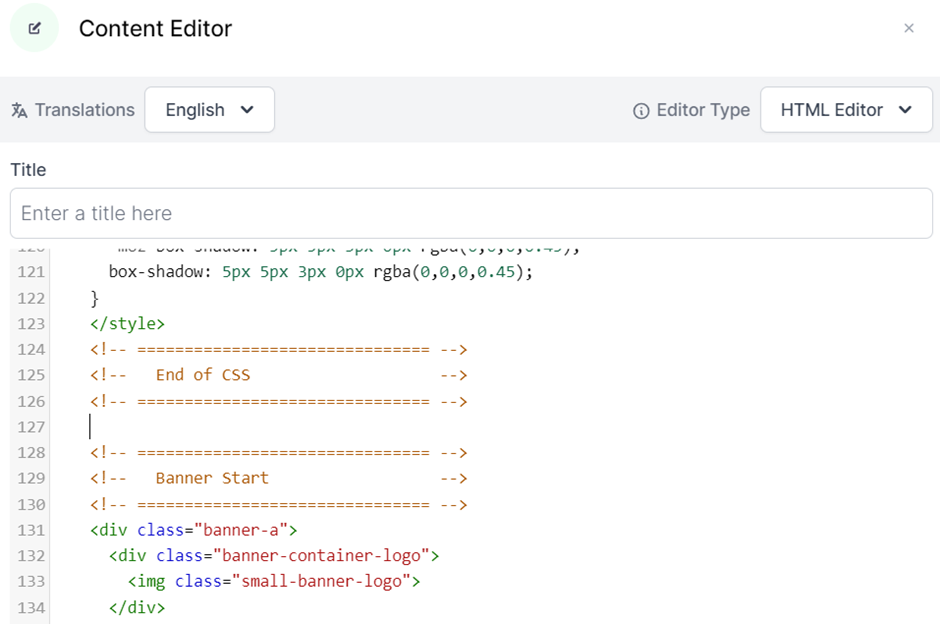
After saving, the banner should appear at the top of the Widget. If no background image is displayed, it means none has been uploaded to PXStudio yet, see Adding Images
CUSTOMIZING THE BANNER
The banner can be modified by changing the CSS. Key attributes are available as variables at the top of the editor code in HTML mode, starting with the line:
:root {
| Variable | Description |
|---|---|
--banner-text | Name of the product/widget panel in the banner |
--banner-text-color | Text color in HEX (#AABBCC) or RGB (rgb(0 255 0)) |
--banner-logo | URL to the logo image |
--banner-background-image | URL to the background image |
Two additional settings further down in the CSS controls the gradient background of the banner text/logo:
| Variable | Description |
|---|---|
.banner-gradient-start | Left start color of the gradient |
.banner-gradient-stop | Right stop color of the gradient |
Set these to the same value for a solid color background.
ADDING A TEXT-IMAGE BLOCK
The second pre-made element is a simple table with one row and two cells, featuring invisible borders. The text cell has a slightly larger font size, and the image has a drop shadow effect.
- Copy the text from Appendix 3.
- Paste it below the CSS/Banner sections.
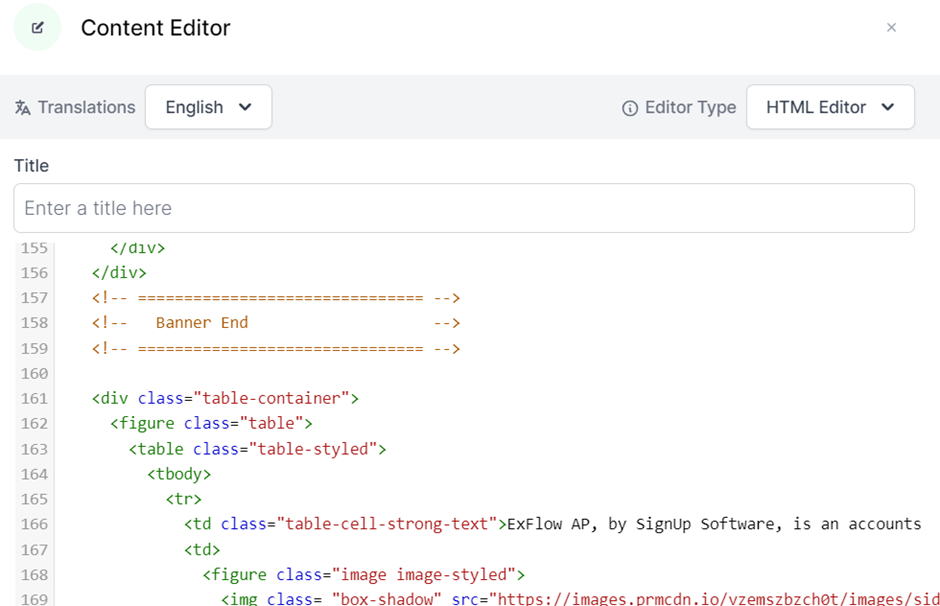
Other text/images/elements can be added above the block in the normal editor, the important thing is that it’s added after the banner section if it’s used.
ADDING IMAGES
When an image is added to a Widget in PXStudio using the editor, it is uploaded to https://images.prmcdn.io with a unique ID in the URL. For example:
https://images.prmcdn.io/vzemszbzch0t/images/background_image_1.png
This URL can be used in any other Widget to refer to the image without having to upload it again.
Example - Change the banner background image:
- Add the image to an empty Widget.
- Open the Widget in HTML mode and copy the URL.
- Replace the existing URL for the
--banner-background-imageparameter in the Widget with the banner element.
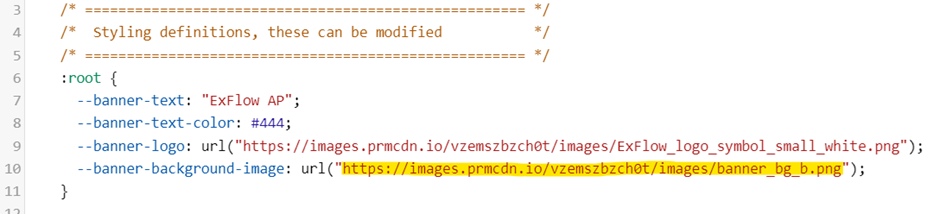
This method is just an example; there may be easier ways if you are more familiar with PXStudio.
APPENDIX 1
Main CSS for Widgets.
<link rel="preconnect" href="https://fonts.googleapis.com">
<link rel="preconnect" href="https://fonts.gstatic.com" crossorigin="">
<link href="https://fonts.googleapis.com/css2?family=Caveat:wght@400..700&display=swap" rel="stylesheet">
<link href="https://fonts.googleapis.com/css?family=Atkinson Hyperlegible" rel="stylesheet">
<style>
/* ===================================================== */
/* Styling definitions, these can be modified */
/* ===================================================== */
:root {
--banner-text: "Axtension";
--banner-text-color: #444;
--banner-logo: url("https://images.prmcdn.io/vzemszbzch0t/images/axtension_logo_symbol_small_white.png");
--banner-background-image: url("https://images.prmcdn.io/vzemszbzch0t/images/banner_bg_c.png");
}
/* ===================================================== */
/* Class definitions, these can be modified */
/* ===================================================== */
.banner-gradient-start {
stop-color: #dbcaf9;
}
.banner-gradient-stop {
stop-color: #ede5fc;
}
/* ===================================================== */
/* Rest of CSS, be careful changing these */
/* ===================================================== */
.background-svg-blob {
background-image: url('data:image/svg+xml,<svg class="svg-blob" style="fill-opacity: 0.25; width=300%;" id="visual" viewBox="0 0 900 600" width="900" height="600" xmlns="http://www.w3.org/2000/svg" xmlns:xlink="http://www.w3.org/1999/xlink" version="1.1"><rect x="0" y="0" width="900" height="600" fill="%23FFF"/><g transform="translate(0, 0)"><path d="M324.5 0C323.1 35.4 321.7 70.8 308.6 100.3C295.5 129.7 270.6 153.2 249.2 181C227.7 208.9 209.7 241 181 249.2C152.4 257.4 113.2 241.6 81.3 250.1C49.3 258.7 24.7 291.6 0 324.5L0 0Z" fill="%23d7def5"/></g></svg>');
position: relative;
top: -8px;
left:10px;
background-repeat: no-repeat;
/*transform: scaleX(1.5);*/
/*padding-bottom: calc(100% * 3 / 4);*/
}
.svg-blob {
fill-opacity: .95;
/*padding-bottom: calc(100% * 3 / 4);*/
}
.banner-a {
background-image: var(--banner-background-image);
background-repeat: no-repeat;
background-size: cover;
position: sticky;
height: 80px;
}
.small-banner-logo {
height: 70px;
width: auto;
padding: 10px 0px 0px 10px;
content: var(--banner-logo);
}
.banner-a svg path,circle {
fill-opacity: 0;
}
.banner-container-logo {
display: inline-block;
float: left;
width: 80px;
}
.banner-container-svg {
display: inline-block;
float: left;
width: 600px;
position: absolute;
overflow: hidden;
left: 0px;
z-index: -1;
}
.banner-header-label-container {
line-height: 80px;
padding-left: 10px;
display: inline-block;
float: left;
left: 100px;
}
.banner-label {
font-family: 'Atkinson Hyperlegible';
font-size: 30pt;
color: var(--banner-text-color);
}
.banner-label::before {
content: var(--banner-text);
}
.banner-svg-element {
width: 800px;
height: 140px;
-webkit-box-shadow: 5px 5px 3px 0px rgba(170,170,170,1);
-moz-box-shadow: 5px 5px 3px 0px rgba(170,170,170,1);
box-shadow: 5px 5px 3px 0px rgba(170,170,170,1);
}
/* Table styling */
.image-styled {
width: 400px;
}
.table-container {
width: 80% !important;
padding-left: 10% !important;
}
.table-styled {
border-collapse: collapse !important;
border: none !important;
}
.table-styled tr,td {
border-collapse: collapse !important;
border: none !important;
}
.table-cell-strong-text {
font-family: 'Atkinson Hyperlegible';
font-size: 13pt;
width: 40%;
}
.divider {
display: fixed;
height: 0px;
top: 0;
left 0;
}
.invis {
display: none !important;
}
.box-shadow {
-webkit-box-shadow: 5px 5px 3px 0px rgba(0,0,0,0.45);
-moz-box-shadow: 5px 5px 3px 0px rgba(0,0,0,0.45);
box-shadow: 5px 5px 3px 0px rgba(0,0,0,0.45);
}
</style>
APPENDIX 2
Custom banner
<!-- =============================== -->
<!-- Banner Start -->
<!-- =============================== -->
<div class="banner-a">
<div class="banner-container-logo">
<img class="small-banner-logo">
</div>
<div class="banner-header-label-container">
<span class="banner-label"> </span>
</div>
<div class="banner-container-svg">
<svg class="banner-svg-element" filter="url(#f3)" xmlns="http://www.w3.org/2000/svg">
<defs>
<linearGradient id="banner-gradient">
<stop class="banner-gradient-start" offset="0" stop-color="lightgray"></stop>
<stop class="banner-gradient-stop" offset="1" stop-color="white"></stop>
</linearGradient>
<filter id="f3" width="800" height="100">
<feDropShadow dx="5" dy="5" stdDeviation="3" flood-color="#777"></feDropShadow>
</filter>
</defs>
<polygon style="fill:url(#banner-gradient);" points="0,0 600,0 500,80 0,80"></polygon>
</svg>
</div>
</div>
<!-- =============================== -->
<!-- Banner End -->
<!-- =============================== -->
APPENDIX 3
Custom text/image block
<div class="table-container">
  <figure class="table">
    <table class="table-styled">
      <tbody>
        <tr>
          <td class="table-cell-strong-text"> </td>
           YOUR TEXT GOES HERE
          <td>
            <figure class="image image-styled">
              <img class= "box-shadow" src="https://images.prmcdn.io/vzemszbzch0t/images/side_pic_1.png">
            </figure>
          </td>
        </tr>
      </tbody>
    </table>
  </figure>
</div>